PTO Request Form Workflow
Automate your PTO request process end to end.
New to n8n? Start free with n8n Cloud (14-day trial, no credit card required).
Overview
When an employee requests PTO, the request needs manager approval, calendar updates, and a record in your HR sheet. This workflow handles it all automatically, from the initial form submission to the final approval email.
What it does
- Triggers automatically when a PTO request form is submitted
- Validates the request and creates a PTO record in your Google Sheet
- Notifies the manager for approval
- Updates the shared team calendar with the PTO dates
- Sends approval or rejection emails to the employee
- Logs validation errors to an error log sheet for troubleshooting
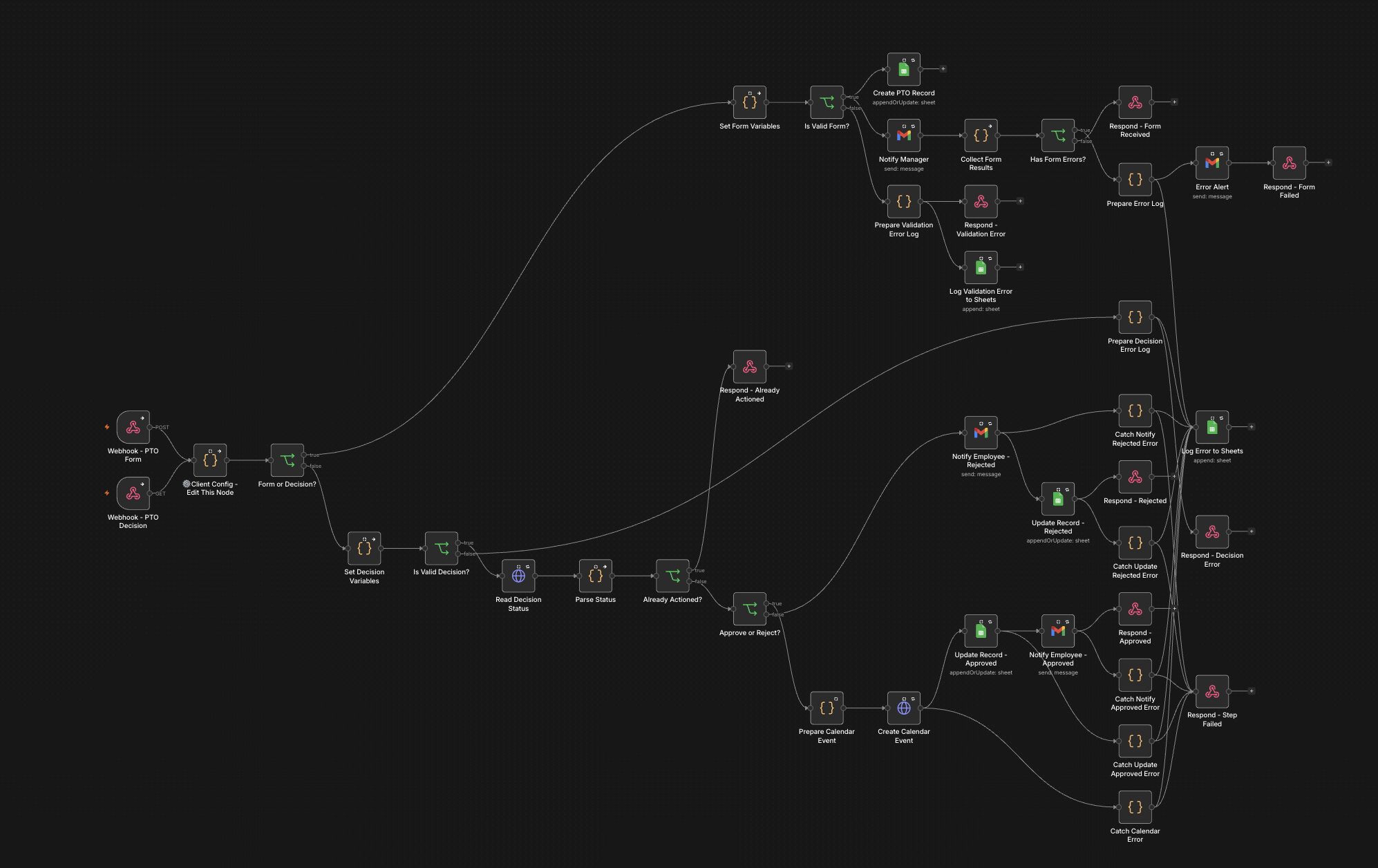
The complete workflow.
Prerequisites
- A Google Workspace account with admin access
- A Google Cloud project with the Gmail, Sheets, and Calendar APIs enabled
- A Service Account with Domain-Wide Delegation (scopes: calendar.events, spreadsheets.readonly)
- A running n8n instance (self-hosted or cloud)
- A shared Google Calendar for PTO events
Pricing
$69 one-time payment. After purchasing on Gumroad, come back here and open Configure to enter your license key and download the workflow files.
What is included
- Production-ready n8n workflow (configure and import: no JSON editing)
- Google Apps Script (connects Google Forms to n8n securely)
- HMAC-SHA256 webhook authentication
- Automatic retry logic for failed requests
- Error logging to a Google Sheets tab
- Configuration tool (no JSON editing required)
- Step-by-step setup guide
How to set it up
Setup takes 30-50 minutes. Here's what's involved:
-
1 Copy the Google Form and Google Sheet
Visit tl-hr.com and enter your license key to access the configurator. Download your pre-configured workflow and copy the Google Form and Google Sheet templates provided.
Important: copying does not carry over the connection between the form and sheet. You will need to reconnect them in Google Forms (Responses tab → Link to Sheets → Select the copied sheet). -
2 Create/Setup Google Cloud Project
Enable the Gmail API and Google Sheets API in your Google Cloud Project. Google's official documentation covers how to enable APIs.
-
3 Unenforce organization policies for service account setup
Before creating your service account key, you must temporarily unenforce three Google Cloud organization policies that block service account and key creation. Go to console.cloud.google.com, search for Organization Policies, and for each of the policies below, click Override parent's policy, set to Not enforced, and save.
The console only shows 50 policies at a time by default. Scroll past the first 50 or search by name to find each policy. iam.managed.disableServiceAccountCreation iam.disableServiceAccountKeyCreation iam.managed.disableServiceAccountKeyCreation -
4 Create a Service Account and JSON key, and enable Domain-Wide Delegation
Create a Service Account in Google Cloud, enable Domain-Wide Delegation so the workflow can create events on the shared PTO calendar and read Google Sheets on behalf of an admin, and create a JSON key for the service account.
Domain-Wide Delegation can take up to 30 minutes to propagate after being enabled. When you enter the Scope field in the Workspace Admin Console's Domain-Wide Delegation panel, include exactly the two scopes this workflow uses and no others: https://www.googleapis.com/auth/calendar.events https://www.googleapis.com/auth/spreadsheets.readonly -
5 Connect your credentials in n8n
Add three credentials to your n8n instance: Gmail OAuth2, Google Sheets OAuth2, and the Google Service Account. Our setup guides walk you through each one step by step.
-
6 Re-enforce organization policies
Once your service account credential is confirmed working in n8n, re-enforce the three org policies to secure your Google Workspace. Go to console.cloud.google.com, search for Organization Policies, and for each policy below, select Override parent's policy, set to Enforced, and save.
iam.managed.disableServiceAccountCreation iam.disableServiceAccountKeyCreation iam.managed.disableServiceAccountKeyCreation This ensures your organization is protected against unauthorized service account and key creation going forward. Verify before moving on: all three policies should now read Enforced. If any still reads Not enforced, your Workspace org can still create service accounts and JSON keys without restriction. The workflow above this section will keep running either way, so this step won't fail loudly if you happen to skip it. -
7 Configure and download your workflow
Enter your company details, webhook URL, calendar ID, spreadsheet ID, and credential IDs into the configurator. Download your pre-configured workflow JSON and Apps Script files.
-
8 Import into n8n, add the Apps Script
Import the workflow JSON into n8n. Paste the Apps Script into your Google Sheet's script editor (Extensions → Apps Script). Run the setup() function once to register the form trigger. The Apps Script setup function creates an Error Log tab in your spreadsheet.
-
9 Test the workflow
Submit a test PTO request form and confirm the manager notification is sent, the calendar is updated, and the PTO record appears in your Google Sheet.
For the full walkthrough, see the setup guide.
Frequently asked questions
-
Which n8n version do I need?
Tested on n8n 2.23.4. Works on recent n8n versions, whether self-hosted or n8n Cloud. When I release an updated template for a newer n8n version, buyers get that update at no extra cost. I can't guarantee every future n8n version stays compatible, and hands-on help re-deploying an update on an existing install is a paid support consultation.
-
Do I need to know how to code?
No. The included configuration tool handles setup with no JSON editing. The only technical step is pasting a provided Google Apps Script into your Google Sheet's script editor: a copy-paste, not writing code.
-
What's your refund policy?
30-day money-back guarantee. If the workflow doesn't work for your setup and support couldn't resolve it, I'll issue a full refund. The template's Gumroad listing is the authoritative source.
Reach support at support@tl-hr.com.
View this template's Gumroad listing for the authoritative source.
-
What Google Workspace permissions do I need?
Google Workspace admin access, plus a Google Service Account with Domain-Wide Delegation (scopes: calendar.events and spreadsheets.readonly). It also needs a shared Google Calendar for PTO events.